

CRM Action
The CRM Action block writes information into HubSpot while the conversation is happening. When the contact answers something in your flow, this block saves that information in HubSpot without anyone having to do it by hand afterwards. Since September 2026 the block is no longer limited to contacts. Now you can also write into deals, companies and tickets.This block only writes to HubSpot. If what you need is to read a piece of data from HubSpot and use it inside the conversation, use the
CRM Object
blockBefore you start
- You need the HubSpot integration connected in Treble. If you do not have it yet, check
Install the HubSpot integration
- Treble needs to know who the contact is. That happens automatically when the conversation starts.
Add the block to your conversation
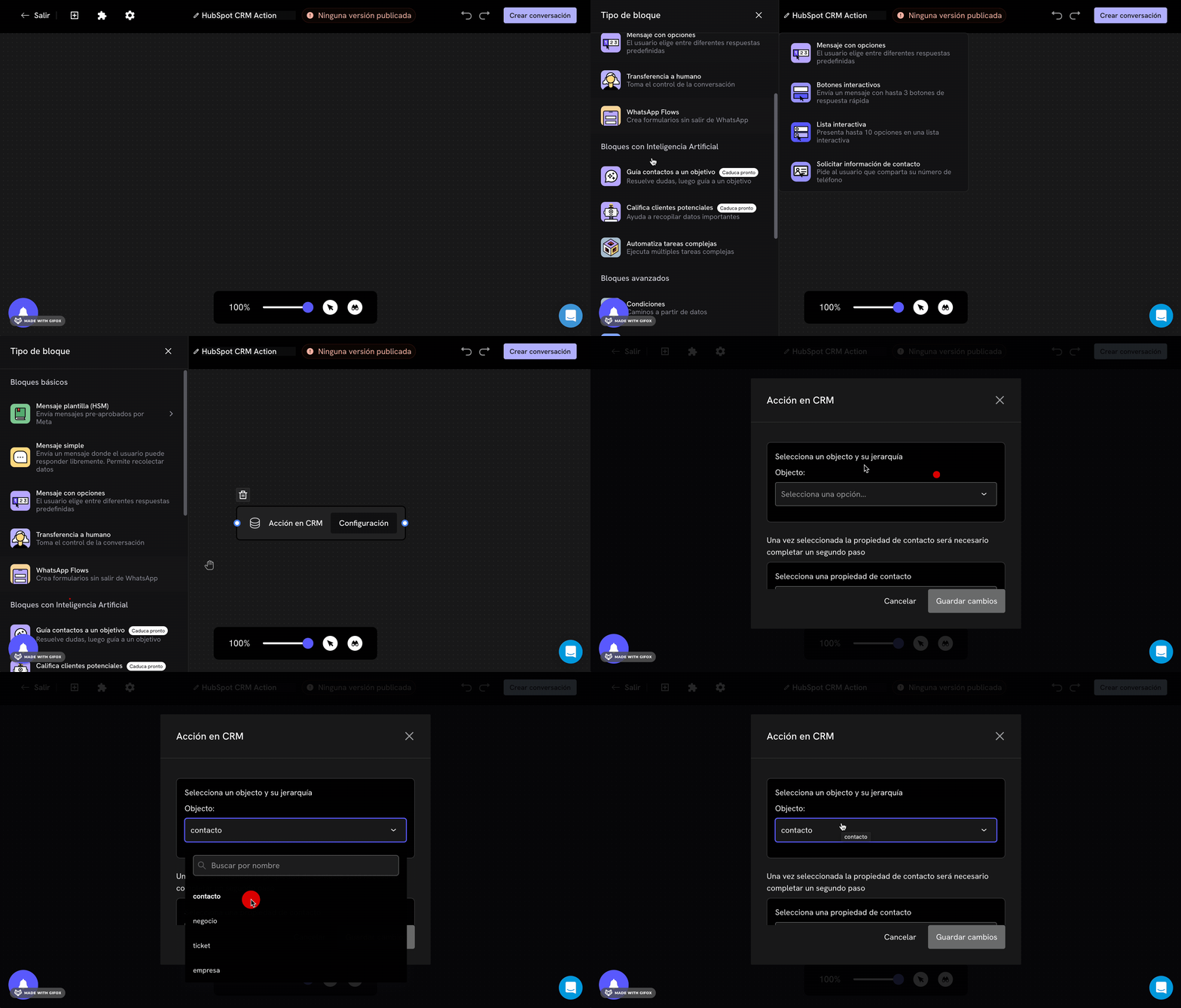
- Log in to
app.treble.ai
- Go to Create Conversation
- Click on the button to display the block menu
- Look for the CRM Action block and click on it to add it
- Move it to the position you want and connect it with the previous block
- Double-click on the block to open its configuration
Step 1: choose the object
The first thing you configure is which HubSpot object you want to write into.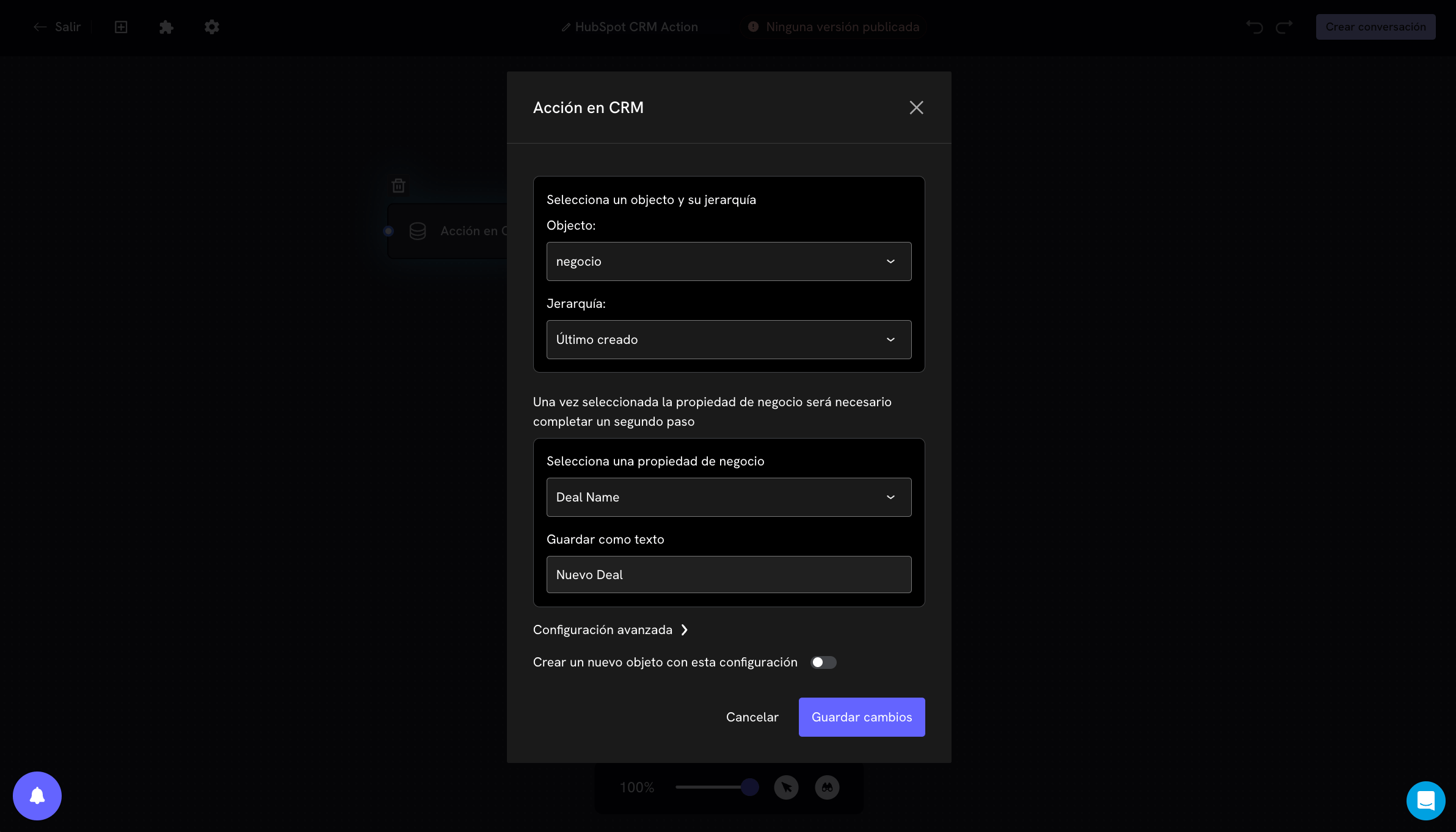
The important difference between the contact and the other objects
The contact is the person you are talking to. Treble already knows who they are, so it can write into them directly. Deals, companies and tickets are not the person. They are records that are associated with that person in HubSpot. That is why Treble first has to find which one of them to use, and that is what the hierarchy is for.Step 2: the hierarchy
This is the part that raises the most doubts, so it is worth understanding it well. A contact can have several deals associated. Imagine a customer who bought from you in January, in March and in August: in HubSpot that is three deals hanging from the same contact. When your conversation says “update the deal”, Treble needs to know which of the three. The hierarchy is the rule that answers that question.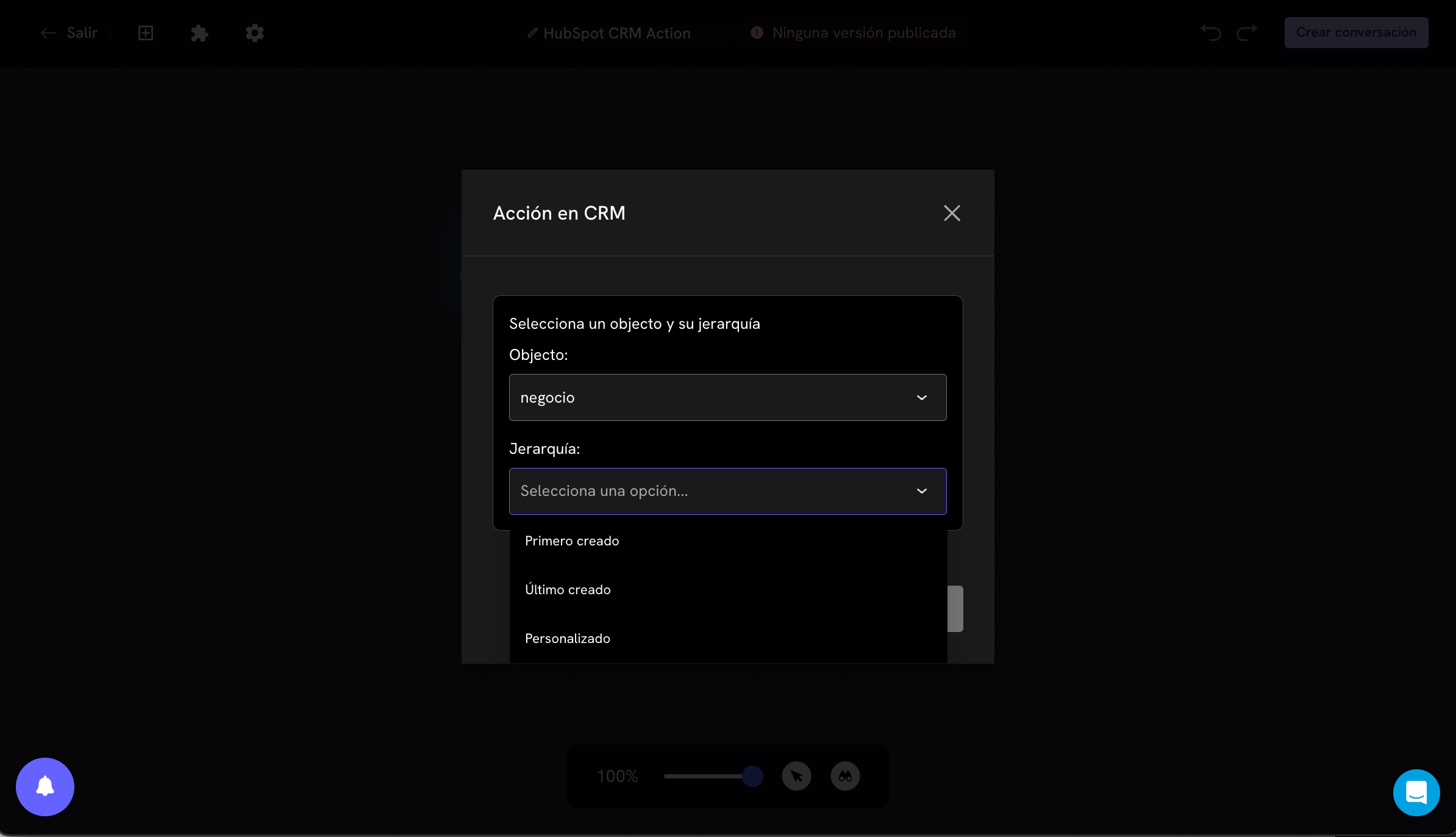
How “Custom” works
You choose a property and a value. Treble keeps only the objects where that property is identical to the value. For example, propertyDeal stage equal to Scheduled presentation: Treble will update the contact’s deal that is in that stage.
When the object is a contact, you will not see a hierarchy. It is not needed: there is only one contact.
Step 3: choose the property and the value
Next you select which property of the object you want to write and which value you want to set. The way to write the value depends on the type of property in HubSpot:Using customer responses as the value
In text and number properties you can write a Treble variable instead of a fixed value. That way you save in HubSpot what the customer has just answered. The typical flow is two blocks:- An open question: “What is the name of your company?”, saving the response in a variable called
company. - A CRM Action block where, in the value, you write
{{company}}.
Create a new object with this configuration
At the end of the configuration there is a toggle called Create a new object with this configuration. This toggle completely changes what the block does.- Off (by default): Treble looks for an object associated with the contact and updates it. It does not create anything.
- On: Treble always creates a new object, sets the value you configured and associates it with the contact. It does not check whether one already exists.
When the toggle is on, the hierarchy no longer applies. Treble is not looking for anything, so there is nothing to choose between.
The whole behavior in a diagram
Advanced configuration
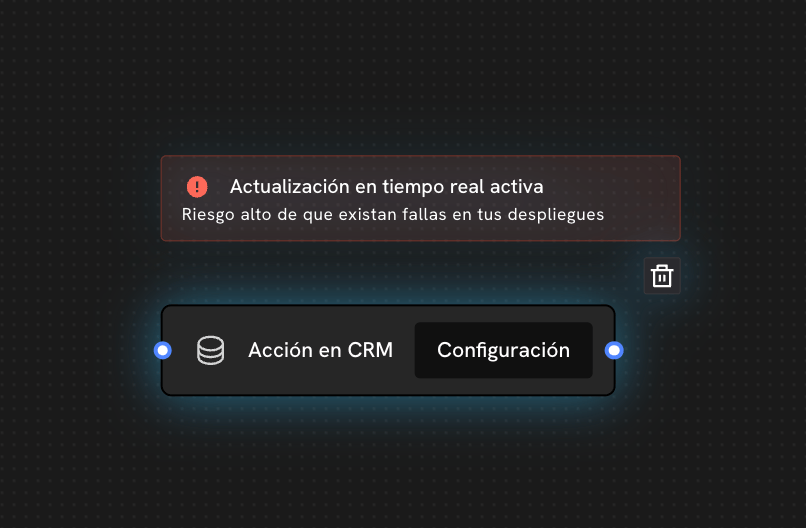
Inside Advanced configuration there is a single option: Real-time property update.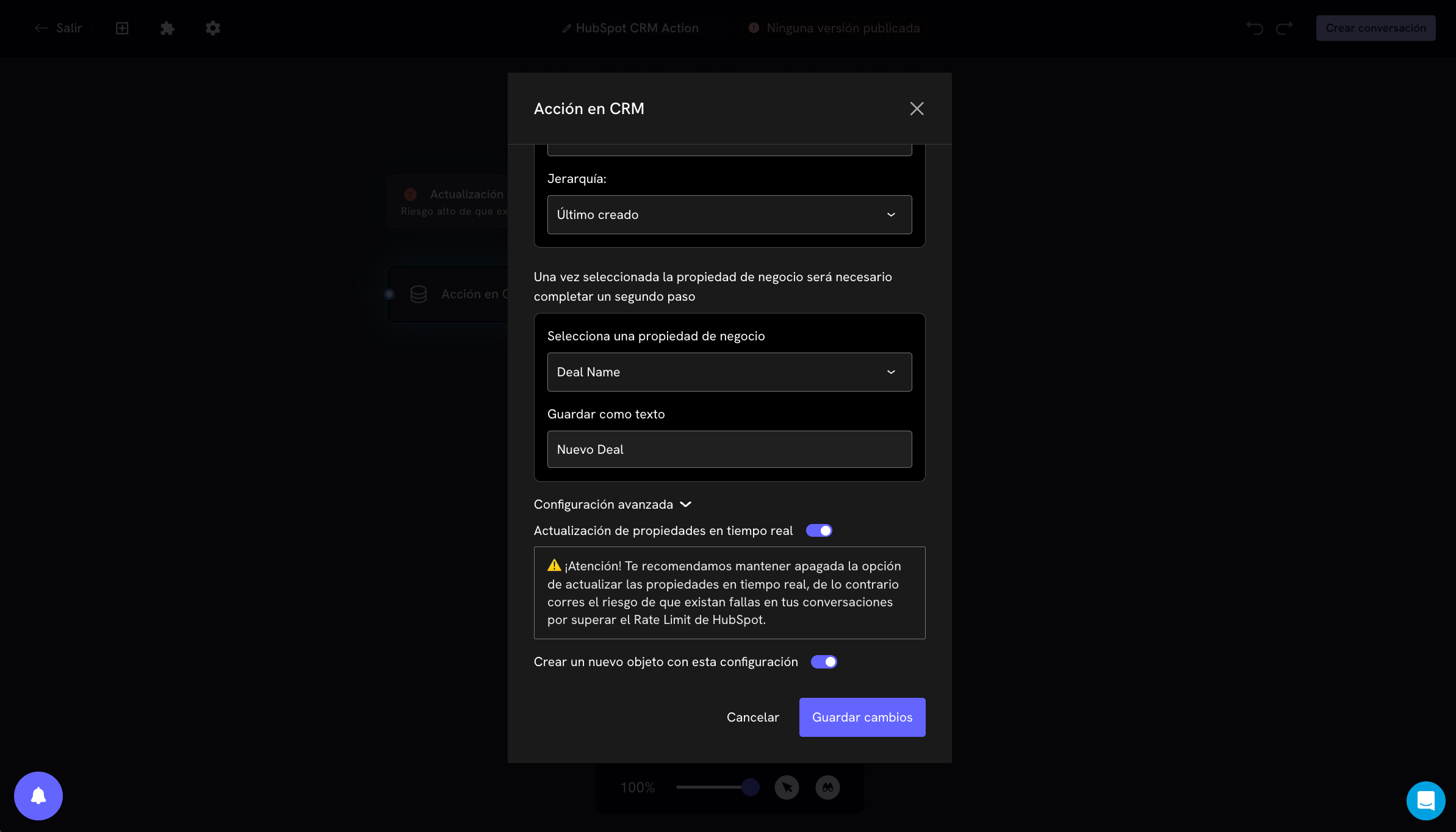
Use cases
Set the deal stage based on what the customer answers
You ask the customer whether they want to schedule a demo. If they answer yes, a CRM Action block on the deal object, with Last created hierarchy, changes the stage to “Demo scheduled”. The sales team sees the change in their pipeline without touching anything.Record the customer’s interest in the contact
A closed question with the options of your catalog, and a CRM Action block on the contact object that saves the chosen option in a contact property. With that you can segment campaigns later.Create a new deal for each request
A customer who asks for a new quote every month. You turn on Create a new object with this configuration on the deal object and use{{product_of_interest}} as the name of the deal. Each request remains a separate opportunity, associated with the same contact.
Update the support ticket the customer is asking about
The customer writes their case number, you save it in a variable, and you use Custom hierarchy with the ticket number property equal to{{case_number}}. Treble updates exactly that ticket and no other.
If something does not work
I cannot find the property I want to use
Treble keeps a copy of the properties of your HubSpot account instead of requesting them every time. If you created the property recently, it is not in that copy yet. The solution is to refresh the properties with the sync button. CheckHubSpot properties in Treble
The block did not write anything in HubSpot
Check in this order:- Does the contact have the object associated? If you chose deal, company or ticket and the create toggle is off, the contact has to have one associated in HubSpot. Open it in HubSpot and confirm it.
- Did the hierarchy leave any object out? With “Custom”, if no object meets the exact condition, there is nothing to update.
- Did the variable have a value? If you used
{{a_variable}}and the customer never answered that question, the block does not write. - Did you write text next to the variable? Check that the field contains only
{{variable}}.